Raspberry Pi: install with the script
From downloading Imager to the first NQ2 startup: 16 screenshots and Windows card preparation.
This path prepares a new card on a Windows computer, then installs the applications during the Raspberry Pi’s first boot. You need a Pi that supports a 64-bit OS, a microSD card with room for the OS and applications, a reader, a power supply and internet access on the computer and Pi. Screenshots show Imager’s English interface, with English explanations below.
If the system is already running, follow installation on an existing system. If you prepare the card on macOS or Linux, write the OS with Imager, boot the Pi and run the Linux installer there over SSH; do not run the .cmd on those platforms.
Download Imager and the NQ2 installer
Download and install Raspberry Pi Imager from the official Raspberry Pi website. Choose the version for your computer. See the manufacturer’s getting started guide for the OS preparation details.
Also download the NQ2 installer package below, rather than just the application ZIP. This bundle contains raspianimager.cmd and config.yaml.
NQ2 installer
Download NQ2 · ZIPFile size: 0.11 MB (114,824 bytes)
Verify the download
SHA-256: 243deb95f43eebc431feae2a78d753c8ff5a9fe705e522da799d53f6d9b4b4d7
Write the OS and prepare the card
Follow the steps in order. Add the NQ2 script after OS writing and verification, before the Pi’s first boot. Click a screenshot to open it at full size.
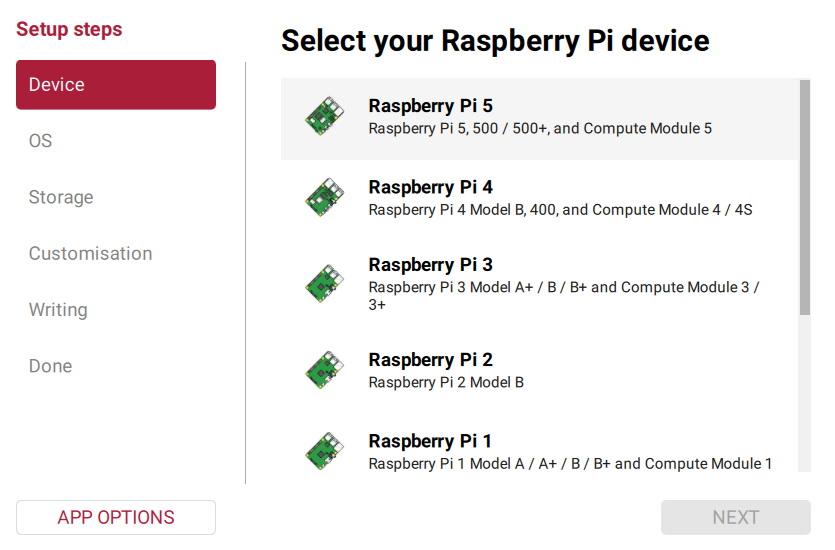
1. Choose your Raspberry Pi
Select the model you actually own, for example Raspberry Pi 4 or 5. The model in the screenshots is an example; it does not change your hardware.
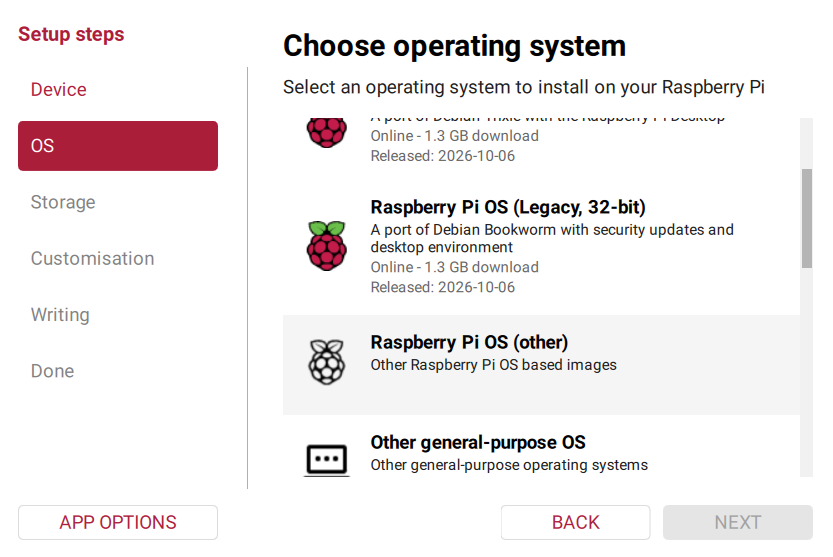
2. Open the Raspberry Pi OS variants
In the operating system list, open Raspberry Pi OS (other).
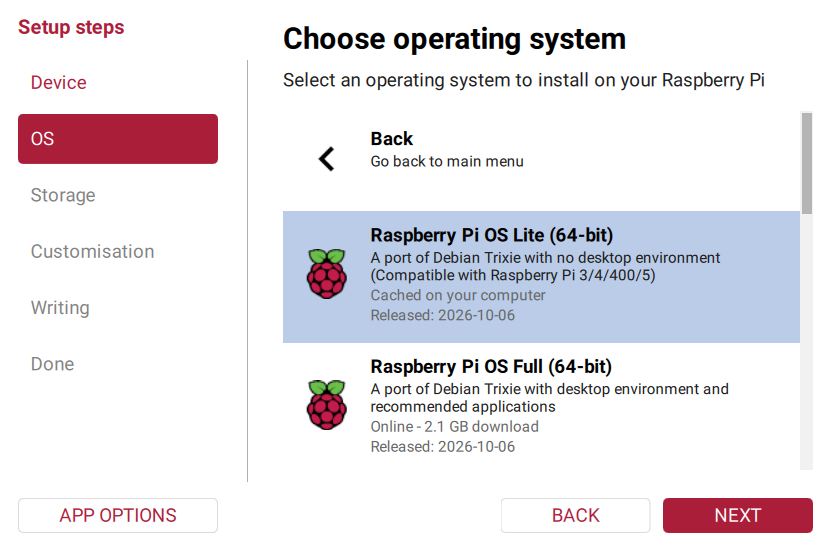
3. Select Raspberry Pi OS Lite (64-bit)
Choose Raspberry Pi OS Lite (64-bit) based on Trixie, with cloud-init. Lite needs no desktop environment. This card-preparation wizard expects cmdline.txt and a cloud-init user-data file; it is not a general editor for every older image.
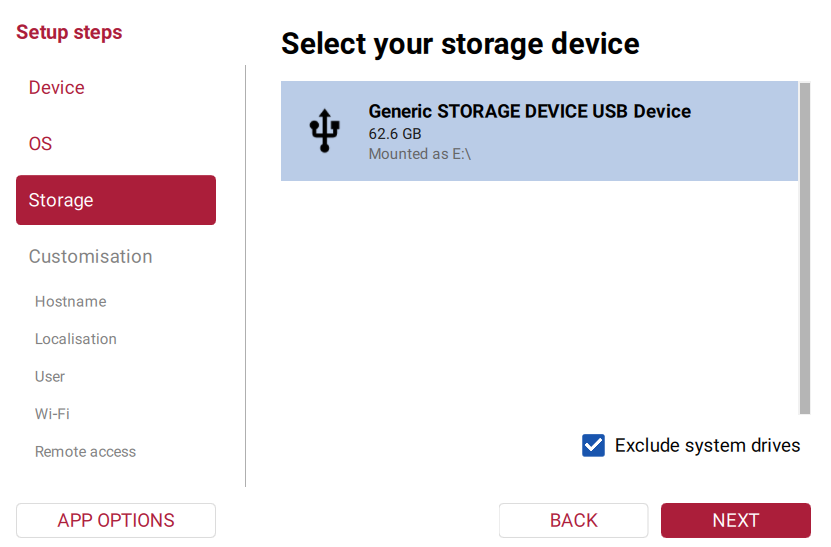
4. Select the microSD card
Select your card reader and check its capacity. E: in the picture is only an example: your card may have another drive letter. Writing the OS erases the selected device.
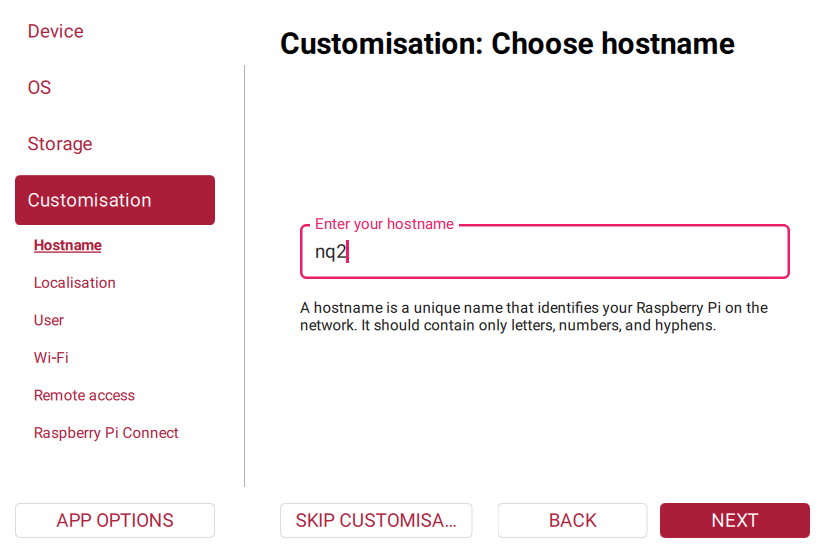
5. Set a hostname
Use a hostname such as nq2, without .local. On networks supporting mDNS this gives the web address nq2.local after installation. A different name is fine; use that name in later steps.
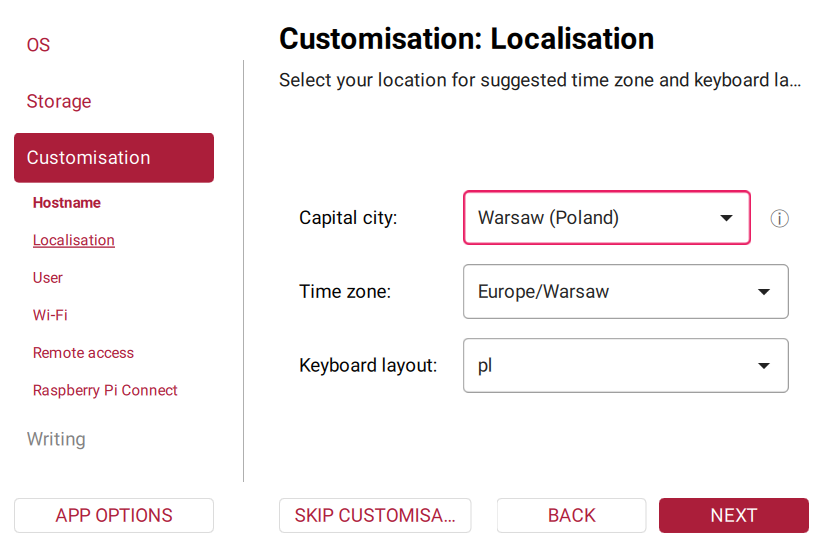
6. Set localisation
Select the country, time zone and keyboard layout for the installation site. The picture uses Warsaw and a Polish keyboard; choose your own values.
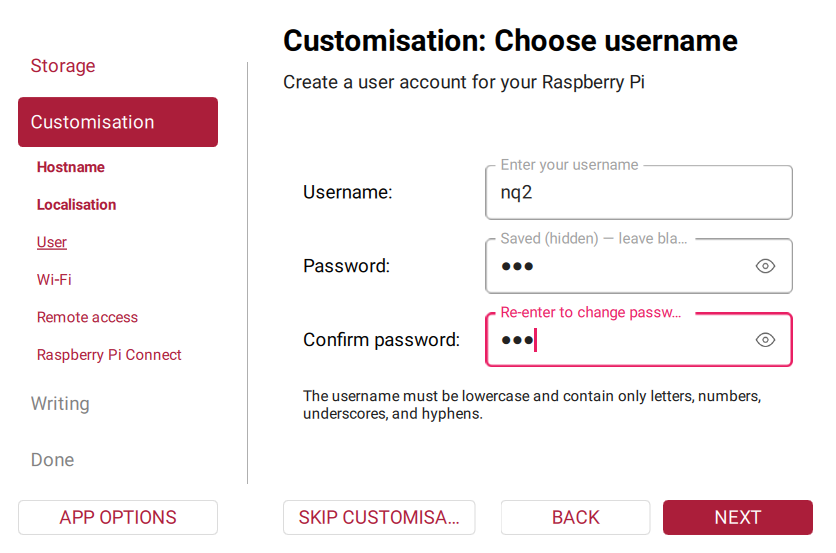
7. Create the Linux account
Choose your Linux username and password and remember them for SSH. nq2 is the example account; another regular username also works. Applications and PM2 use the existing account from Imager. This password is separate from MQTT and the NQ2 administrator password.
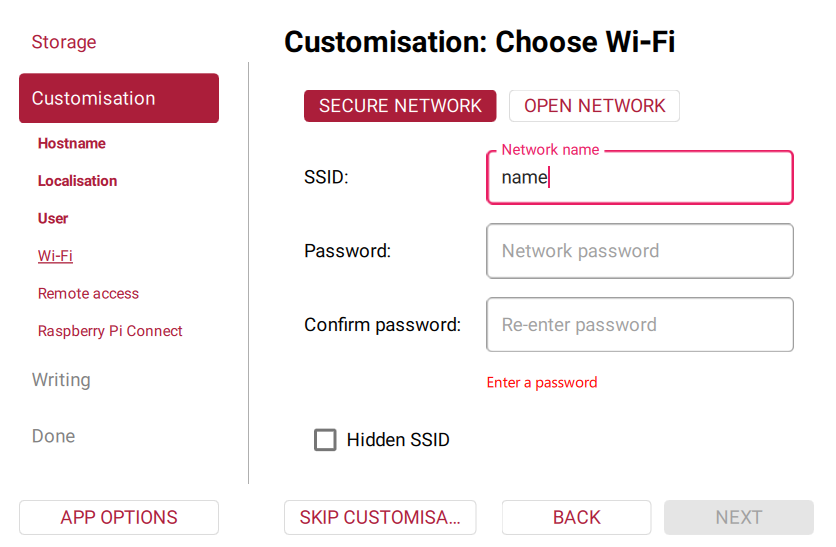
8. Configure Wi-Fi or use Ethernet
For Wi-Fi, enter the exact SSID and password, select the appropriate network type, and enable Hidden SSID only if needed. For an open Wi-Fi network use Open network. You can instead use Ethernet. These are the network settings for the Pi; the NQ2 wizard does not ask for or overwrite them.
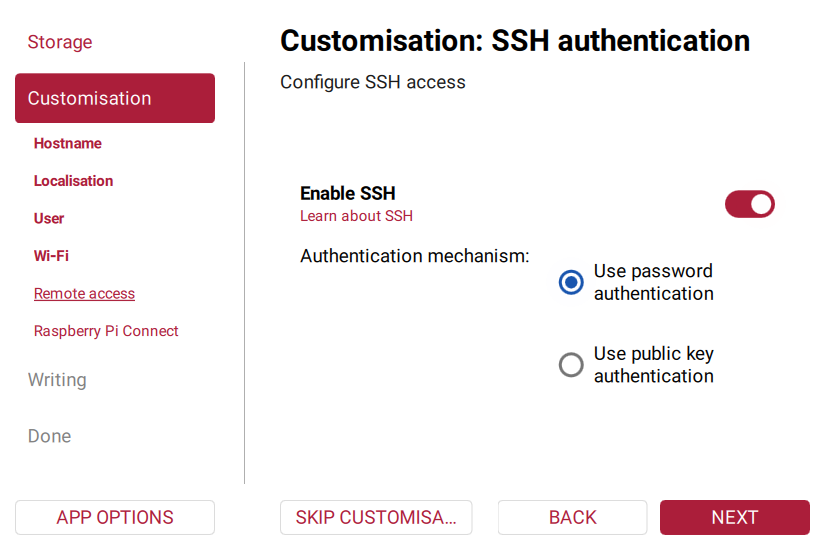
9. Enable SSH
Enable SSH so you can check installation progress. The example uses password authentication with the account from the previous steps. If you select public key authentication, configure your SSH key in Imager and use that key when connecting.
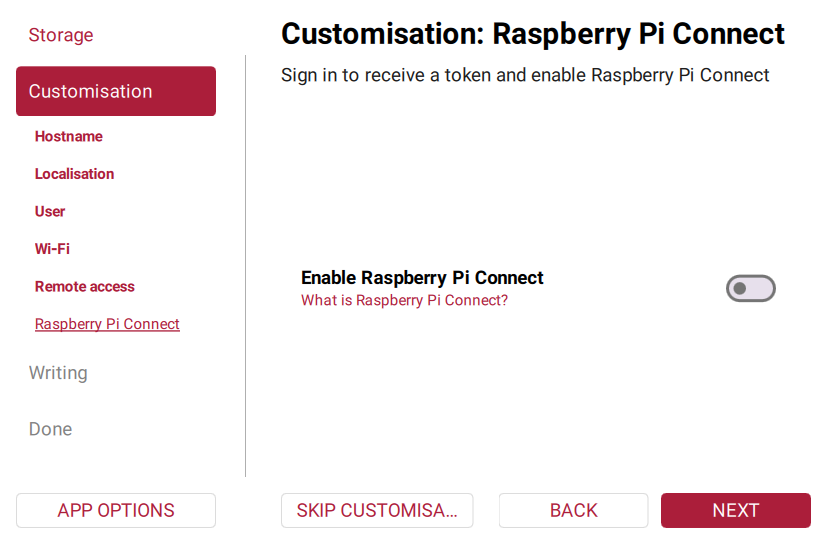
10. Choose whether to use Raspberry Pi Connect
Raspberry Pi Connect is optional and is not required to install NQ2. You can leave it disabled, as shown.
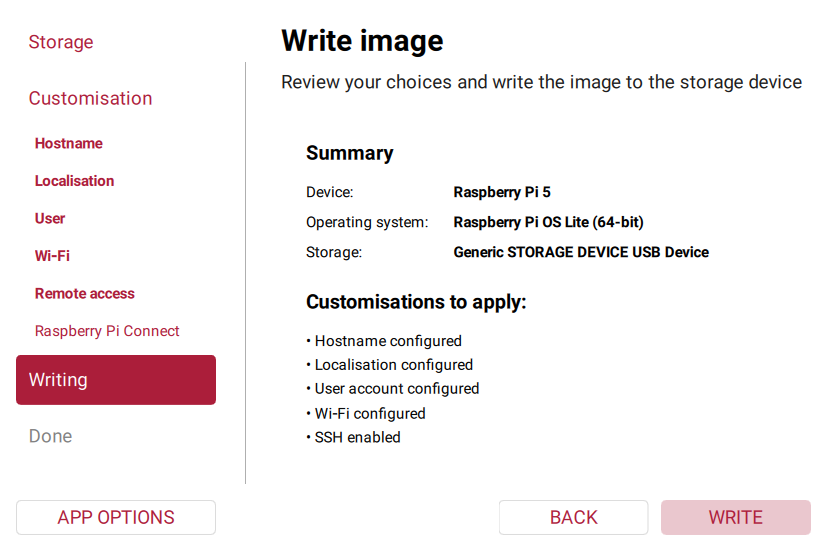
11. Review your settings
Check the Raspberry Pi model, Lite 64-bit OS, correct card, hostname, account, network and SSH settings. Correct anything that does not match the target device before choosing Write.
12. Confirm erasing the card
Confirm only after checking the destination card. The operation deletes the existing data on that card.
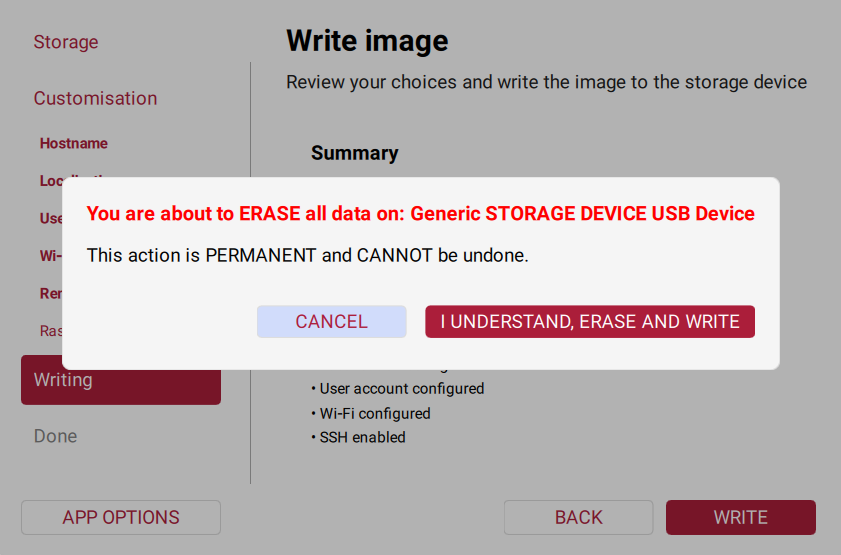
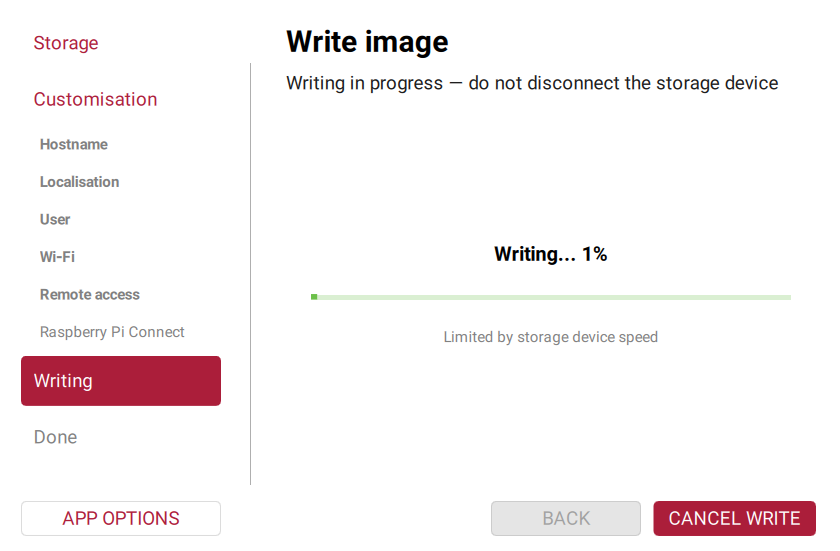
13. Wait for writing and verification
Keep the card connected until Imager completes both writing and verification. Do not run the NQ2 card wizard while writing is in progress. When finished, keep the card in the computer. If Imager has unmounted it, reinsert it so the boot partition is visible; do not boot the Pi yet.
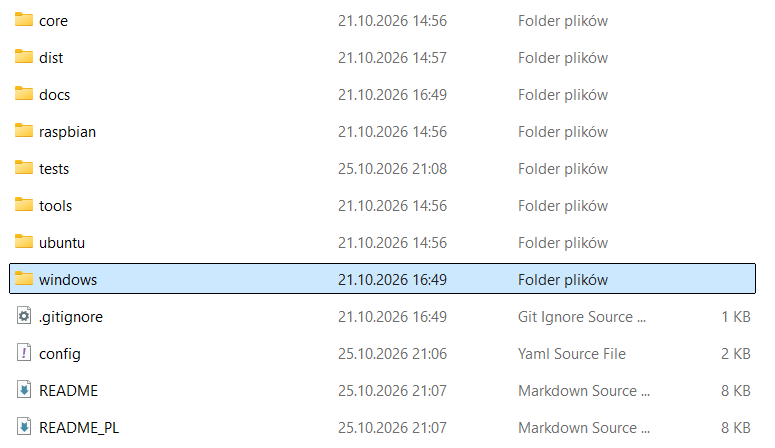
14. Extract the installer package
Extract the NQ2 installer ZIP to your computer and open nq2-installation. Keep core, windows, ubuntu, raspbian, docs and config.yaml together; do not copy just one launcher. The screenshot shows a development copy with extra dist, tests and tools folders; those extras are not included in the customer ZIP. Windows may hide extensions and display config.yaml as config.
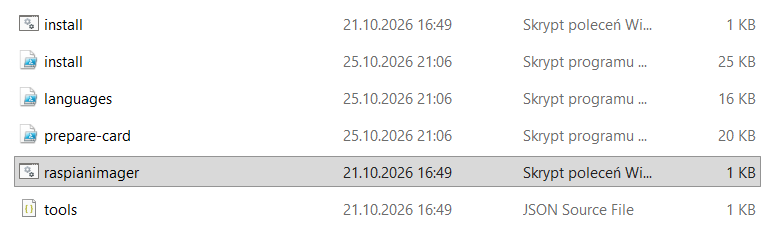
15. Run the card-preparation wizard
Open windows and double-click raspianimager.cmd. The screenshot may show only raspianimager because Windows hides extensions. Do not choose install.cmd for this step: it installs applications on your Windows computer. This card launcher is available only on Windows; the Ubuntu and Raspberry Pi OS launchers install on an already running Linux system.
In the wizard:
- Choose
ENorPL. - Enter the bootfs partition’s drive letter, for example
E. Check that it is the card written by Imager. It should containcmdline.txtanduser-data; do not format the Linux partition if Windows offers to do so. - Select Nginx, Mosquitto and Zigbee2MQTT. All three default to enabled.
- If installing Mosquitto, choose whether other devices may connect. The default
falseallows only applications on the Pi;trueallows connections using the Pi’s IP address and MQTT credentials. This ismqtt_allow_remoteinconfig.yaml. - Enter the MQTT username/password and NQ2 administrator email/password. If skipping Mosquitto but installing Zigbee2MQTT, enter the existing broker URL.
- Wait for the success message. The wizard saves configuration and installer files and enables first-boot startup. A wrong drive letter, missing files or an already prepared card stops preparation rather than overwriting it.
No Python installation is required on Windows. You can edit defaults beforehand in the English-commented config.yaml. The wizard does not change the SSID, Wi-Fi password, hostname, Linux account or SSH configured in Imager. The installer disables Wi-Fi power saving on the target Linux system when it uses NetworkManager.
16. Eject only after the NQ2 wizard finishes
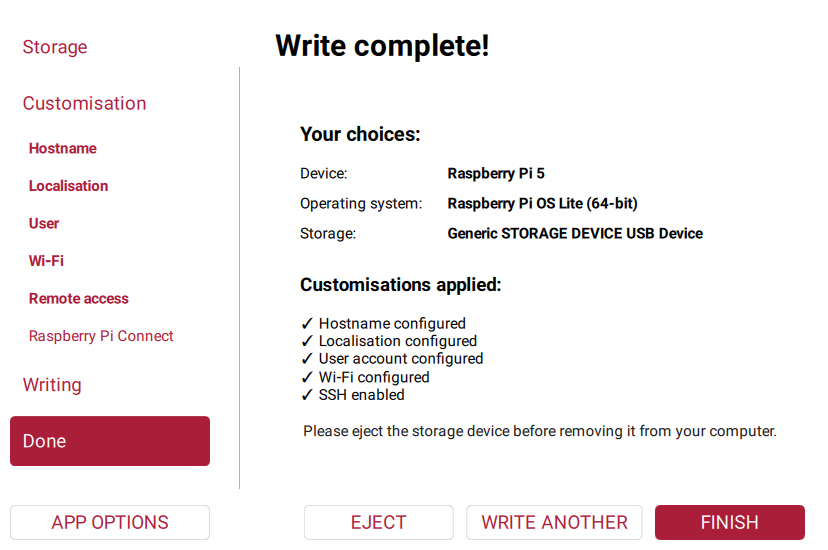
After the NQ2 wizard reports success and all writes finish, safely eject the card using Imager or the operating system. Do not remove it immediately after OS writing if the NQ2 wizard has not yet prepared it. Insert the card into the Raspberry Pi and connect power and the configured network.
First boot and checks
After inserting the prepared card and powering on the Raspberry Pi, allow about 5–30 minutes for the full installation. The device must have internet access to download and install its dependencies. Installation time depends on the Raspberry Pi, the card and your connection; a slower connection can take longer. Keep the device powered on throughout the process.
Use a reliable power supply suitable for your Raspberry Pi model. An underpowered or poor-quality supply can cause unstable operation, unexpected restarts and installation problems.
When installation has finished, open http://nq2.local in a browser on a computer connected to the same network as the Raspberry Pi. This assumes the hostname nq2 configured in Imager and Nginx enabled, as in the default setup. If you chose another hostname, use that name instead; without Nginx add :8080. You do not need to connect over SSH for a normal installation.
Sign in using the NQ2 administrator credentials chosen in the wizard. If Zigbee2MQTT was selected, its panel is at http://nq2.local:8090 (or your chosen hostname); complete coordinator and MQTT setup there if needed.
Wi-Fi: disable power saving
If the Raspberry Pi or Linux server uses Wi-Fi, disable Wi-Fi power saving to address intermittent disconnections after idle periods. The device can appear switched off while it is still running. The current NQ2 installer configures this automatically on systems using NetworkManager. For a manual installation or an older bundle, follow the Wi-Fi configuration and verification guide. Ethernet does not require this Wi-Fi change.
If the page does not open
If NQ2 is still unavailable after the expected installation time, first check that the Pi has stable power, internet access and the Wi-Fi/Ethernet settings configured in Imager. Its IP address is assigned by your router; no fixed 192.168.1.100 address is imposed by the installer. If .local resolution does not work on your computer, find the Pi’s address in the router and try http://PI_IP (or http://PI_IP:8080 without Nginx).
For further diagnosis, connect to the Pi over SSH using a program such as PuTTY or your terminal. In PuTTY, enter the Pi’s IP address or hostname, choose SSH on port 22, and sign in with the Linux account configured in Imager, not the NQ2 administrator account. In a terminal, substitute your account and device address:
ssh YOUR_USER@PI_ADDRESS
After signing in, follow the installer logs to see the current step or error:
sudo journalctl -u nq2-firstboot -f
Ctrl+C stops following logs; it does not stop the installation. You can also check the installer status and application processes:
sudo systemctl status nq2-firstboot --no-pager
pm2 list
pm2 logs nq2 --lines 100
- Run
pm2 listas the regular Imager account.sudo pm2 listreads another account’s process list. - If the device is absent from the router, check power, OS boot and Imager network settings. The NQ2 service cannot repair an incorrect SSID or password; connect Ethernet or a monitor to diagnose it.
- Download or installation errors retry through the service after 120 seconds. Inspect logs for the cause. The service is also enabled after a reboot, but card corruption following power loss can require separate repair.
- After fixing a failure, use
sudo systemctl restart nq2-firstboot. After success a completion marker prevents reinstalling; this is not an update mechanism.
For MQTT access from other devices, see the installation overview. To execute steps yourself, use manual installation instead of adding the script to the card.
Application configuration in .env
The installer creates /opt/nq2/.env on Linux or C:\ProgramData\NQ2\apps\nq2\.env on Windows. It writes NODE_ENV, PORT, ADMIN_EMAIL, ADMIN_PASSWORD using wizard / config.yaml values. PM2 starts NQ2 directly (pm2 start index.js --name nq2 for a package using index.js), and adds Zigbee2MQTT separately at the end. pm2 save records the list for startup. No ecosystem file is generated. This applies to new installations; existing installations are not automatically migrated.
Remove initial administrator settings after signing in
After the first startup and a successful sign-in to NQ2, remove ADMIN_EMAIL and ADMIN_PASSWORD from the application’s .env file. They are needed only during the first startup to create the administrator account. Keep the runtime settings, for example:
NODE_ENV=production
PORT=8080
Edit /opt/nq2/.env on Linux or C:\ProgramData\NQ2\apps\nq2\.env on a default Windows installation. Do this after confirming that your administrator login works.